Austin Gallery
Printing & ReproductionJuly 22, 202615 min read

Best Monitors for Photo Editing 2026: Top 10 Picks

Ten proofing-grade displays for photographers, ranked by the things that decide real edits: gamut you can trust, calibration you can verify, and density that shows what the sensor caught. From a $194.97 sleeper to a 6K flagship, every price verified live.

By Justin Park · How we research

What Monitor Do You Need for Photo Editing?

Your situationBuy thisPrice
You print your work, or want the widest safe gamutASUS ProArt PA279CRV$399.00
You want Retina density for high-megapixel filesASUS ProArt PA27JCV 5K$649.00
Your desk needs a Thunderbolt dock tooDell UltraSharp U2725QE$639.00
You edit on a MacBook and want the screens to matchBenQ MA270U$549.99
You want a big 32 inch canvas for proofingASUS ProArt PA329CRV$579.60
Budget is tight, color honesty is not negotiableLG 27UP650K-W$239.99
Cheapest one-cable USB-C 4K that edits honestlyINNOCN 27" 4K USB-C$194.97
Money-no-object studio flagshipLG UltraFine 6K$1,299.99

You spent real money on a camera that captures fourteen stops and billions of colors, and then you judge every file through whatever panel happened to be on sale. This guide is for fixing that specific mistake. Photographers proofing prints, culling weddings, and delivering client galleries need three things from a monitor: enough gamut that the screen shows the colors the file actually contains, factory or field calibration so those colors are placed honestly, and enough resolution to judge focus and grain at 100% without scrolling a postage stamp around the frame.

Our top pick, the ASUS ProArt PA279CRV ($399.00), hits all three at a price that would have been fantasy five years ago: 27 inch 4K, 99% Adobe RGB and DCI-P3, Delta E under 2 with the calibration report in the box. Around it we have verified nine alternatives for every budget and workflow, from a $194.97 USB-C sleeper to a 6K Thunderbolt 5 flagship, every price and stock status checked live at publish time. Every link goes to Amazon with our affiliate tag; we earn a small commission, at no cost to you, when you buy through us.

One scope note: this guide is written for photographers. If your work is digital illustration or print design rather than photography, our color-accurate monitors guide ranks the same territory from the artist's side of the desk, and our art printer guide covers the output end of the color chain.

In a Hurry?

The 3 picks that cover most readers. Tap to read the full review or buy direct.

Best Overall

ASUS ProArt PA279CRV

ASUS ProArt PA279CRV

$399.00

99% Adobe RGB, factory calibrated, 4K. The default answer.

The 5K Upgrade

ASUS ProArt PA27JCV

ASUS ProArt PA27JCV

$649.00

Studio Display density for less than half of Apple money.

Best Budget

LG 27UP650K-W

LG 27UP650K-W

$239.99

An honest 4K IPS panel that calibrates into a real editing screen.

Best Overall for Photo EditingOur Pick

Panel

27 inch IPS, 4K UHD (3840 x 2160)

Gamut

99% DCI-P3, 99% Adobe RGB

Accuracy

Delta E < 2, Calman Verified

Connectivity

USB-C with 96W PD, DisplayPort daisy-chain, HDMI

Pros

  • 99% Adobe RGB and DCI-P3 at a mainstream price
  • Factory calibration report in the box, Calman Verified
  • 96W USB-C runs and charges a laptop on one cable

Cons

  • Basic HDR, like nearly everything at this price
  • Utilitarian stand and styling

The spec that defines a photo editing monitor is Adobe RGB coverage, and this is the cheapest serious way to get it. Ordinary monitors, even expensive ones, chase sRGB and DCI-P3 because that is what video and web work need. Photographers who print need Adobe RGB, the gamut that maps to what inkjet printers and photo labs can actually reproduce, and the PA279CRV covers 99% of it on a 4K panel that ASUS calibrates at the factory and ships with the report.

Why Adobe RGB is the dividing line: greens and cyans in landscape work, and the saturated reds in skin tones and product shots, live in the part of Adobe RGB that sRGB monitors physically cannot show. Edit on an sRGB screen and those colors are being clipped before you ever see them; the print reveals the difference later, at your expense.

The working experience seals it: 4K at 27 inches is 163 PPI, sharp enough to judge fine detail and grain at 100%, and the USB-C port pushes 96W, so a MacBook Pro plugs in with one cable and charges while it edits. If your work stays on screens rather than in print, our color-accurate monitor guide covers the sRGB-first alternatives; for print-bound photography, this is the pick.

Our Pick

The best value in photo editing displays right now, full stop. A 27 inch 4K panel covering 99% of both DCI-P3 and Adobe RGB, factory calibrated to Delta E under 2 and Calman Verified, with 96W USB-C so one cable runs a laptop. Photographers used to pay double for this spec sheet.

Buy this if you edit photos seriously and want the gamut that actually matters for print work: Adobe RGB coverage is what separates photo monitors from ordinary good monitors, and 99% at $399 is the number that makes this the default recommendation. The 96W USB-C power delivery makes it the natural dock for a MacBook or any USB-C laptop.

What we don't like

The stand is functional rather than beautiful, and HDR support is basic (this is an SDR editing monitor that accepts HDR signals, like most in this class). Uniformity is very good but not at the level of the hardware-calibration monitors costing three times more.
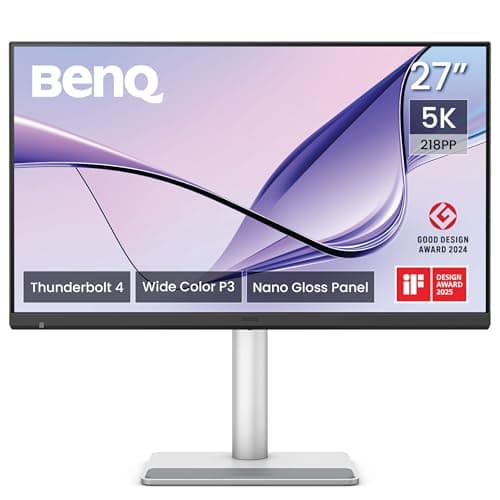
Best 5K for PhotographersThe Resolution Upgrade

Panel

27 inch IPS, 5K (5120 x 2880), 218 PPI

Gamut

99% DCI-P3, Delta E < 2

Calibration

Factory calibrated, Calman Verified

Connectivity

USB-C 96W PD, DisplayPort, HDMI

Pros

  • 218 PPI Retina-class density for half of Apple money
  • Nearly a full 45MP file visible at 100%
  • Perfect 2x scaling on macOS

Cons

  • P3-first gamut, not an Adobe RGB specialist
  • 5K pushes older GPUs harder than 4K

Resolution is the second lever in photo editing, and 5K pulls it hard. The PA27JCV packs 5120 x 2880 into 27 inches, which is 218 pixels per inch, the density Apple charges $1,599 for in the Studio Display. At that density the screen stops looking like a screen: type renders like print, and a 100% view of a modern mirrorless file shows nearly the whole frame instead of a crop you have to pan around.

The choice between this and our top pick is a genuine fork: the PA279CRV gives wider Adobe RGB for print-destined work at $399, while this gives Retina density and P3 color at $649. Wedding and portrait shooters delivering digitally, and anyone on a Mac, will love the 5K; landscape printers should keep the Adobe RGB panel. We break this exact matchup down in the head to head below.

The Resolution Upgrade

5K at 27 inches is the Retina sweet spot: 218 PPI, the same pixel density as Apple's Studio Display, at less than half the price. A 45 megapixel file nearly fits on screen at 100%, text is print-sharp, and the 99% DCI-P3 panel is factory calibrated.

Buy this if you shoot high-resolution bodies and are tired of scrolling around your own files. At 5K (5120 x 2880), you see roughly 14.7 million pixels at once versus 8.3 million on 4K, which changes how sharpening, noise reduction, and critical focus checks feel. Mac users get exact 2x scaling, the thing macOS renders best.

What we don't like

Adobe RGB coverage is not the headline here the way it is on the PA279CRV; this panel is P3-first, which suits screen-destination work and hybrid shooters more than dedicated print specialists. 60Hz only, which matters not at all for stills.

Best Connectivity / Hub MonitorThe One-Cable Studio

Panel

27 inch IPS Black, 4K, 120Hz

Contrast

~2000:1, double standard IPS

Hub

Thunderbolt 4, USB-A/C ports, RJ45 ethernet

Extras

KVM, daisy-chain

Pros

  • Full Thunderbolt dock built into the monitor
  • IPS Black shadow rendering flatters photo work
  • 120Hz makes everything feel instant

Cons

  • No Adobe RGB ambitions
  • Connectivity premium in the price

Some photographers need a reference panel; working photographers often need a cockpit. The U2725QE is the cockpit: plug one Thunderbolt 4 cable into a laptop and the monitor supplies power, ethernet, a card reader via its USB ports, tethering bandwidth, and a 4K 120Hz IPS Black image with contrast that finally fixes the washed-out blacks UltraSharps were known for.

The IPS Black point deserves emphasis for photo work specifically: at roughly 2000:1 contrast, shadow separation that mushes together on a standard 1000:1 IPS stays legible here, which means fewer prints that come back darker than the screen promised. Pair it with the right monitor arm and the desk is genuinely one cable clean.

The One-Cable Studio

The UltraSharp that turns a monitor into a docking station: Thunderbolt 4, a full USB hub, ethernet, and 120Hz on an IPS Black panel with roughly double the contrast of standard IPS. For photographers who tether, offload cards, and run peripherals, this replaces $200 of dock.

Buy this if your desk is a workflow: card readers, backup drives, tethering cable, ethernet to a NAS. The built-in hub handles all of it through one Thunderbolt cable to the laptop, and IPS Black's deeper blacks make shadow-detail judgment noticeably better than standard IPS panels, the traditional UltraSharp weakness.

What we don't like

It is an sRGB and P3 display, not an Adobe RGB one, so print specialists should look at the ProArt or ViewSonic picks instead. You are paying a connectivity premium; the panel alone does not cost $639.

Best for Mac UsersThe MacBook Match

Panel

27 inch IPS, 4K UHD

Gamut

98% Display P3, tuned to match MacBook screens

Sync

ICC-sync with macOS, M-book mode

Connectivity

Dual USB-C (90W PD), HDMI

Pros

  • Screen-to-screen color match with a MacBook
  • 90W USB-C charges while you edit
  • Puck remote beats rear-button menus

Cons

  • P3-first, not for Adobe RGB print work
  • Less compelling on Windows

Every MacBook photographer knows the moment: the photo looks perfect on the laptop, then subtly wrong on the external monitor. Two panels, two calibration states, two whites. The MA270U attacks exactly that: its factory tuning targets the same P3 white point and gamma as Apple's own displays, and BenQ's ICC-sync software keeps the pair aligned as macOS color settings change.

At $549.99 it sits between our $399 top pick and the 5K options, and the buying logic is simple: if your workflow is MacBook-plus-monitor and consistency between the two matters more than maximum gamut, this is the specialist tool for that job.

The MacBook Match

BenQ built this one specifically for MacBook photographers: a P3 panel tuned to match Apple's displays, ICC-sync so the monitor and laptop screen agree, and dual USB-C with 90W delivery. The problem it solves is the two-screens-two-colors problem, and it solves it well.

Buy this if you edit on a MacBook next to an external display and the mismatch drives you mad. BenQ's M-book mode and ICC sync keep the external panel visually consistent with the MacBook's own screen, so culling on one and editing on the other stops being a color gamble. Wireless puck control is genuinely convenient.

What we don't like

Like the Dell, this is a P3 display, not Adobe RGB, so it serves screen-first photographers best. The Mac-specific features are the point; Windows users should buy the ProArt instead and keep the difference.

Best High-End / 6K FlagshipThe Studio Flagship

Panel

32 inch Nano IPS Black, 6K (6144 x 3456)

Gamut

98% Adobe RGB, 98% DCI-P3

Connectivity

Thunderbolt 5, 96W PD

Density

~224 PPI

Pros

  • 6K resolution shows huge files nearly 1:1
  • Rare dual-strength Adobe RGB and P3 coverage
  • IPS Black contrast on a big color-critical panel

Cons

  • Flagship price
  • Thunderbolt 5 hardware still uncommon

At the top of the market the question changes from what is good enough to what removes the last compromise. The 32U990A-S removes several at once: resolution (6K means a 45 to 50 megapixel frame displays essentially without downsampling), gamut (98% Adobe RGB and 98% P3 on the same panel is genuinely uncommon), and contrast (IPS Black again, at reference size).

The honest framing: nobody needs this to make excellent photographs, and our $399 top pick edits the same file to the same standard for print. What this buys is the experience of working at 1:1 on a canvas that shows everything, which for full-time retouchers and fine-art printers is worth real money. Everyone else should read the head to head below and keep $900.

The Studio Flagship

The most screen a photographer can currently buy without entering reference-monitor pricing: 32 inches, 6144 x 3456, Thunderbolt 5, and a Nano IPS Black panel covering 98% of both P3 and Adobe RGB. A 50 megapixel file fits on screen at nearly full resolution.

Buy this if the monitor is your primary professional instrument and you bill accordingly. 6K at 32 inches keeps Retina-class density on a canvas big enough for a full-resolution image plus panels, and it is one of the rare panels that is strong in BOTH Adobe RGB and P3, covering print and screen work without compromise.

What we don't like

It costs as much as three excellent 4K monitors, and Thunderbolt 5's full benefits need a very recent machine. At this level, some pros will rightly consider hardware-calibration alternatives instead.

Austin Art Insider

Free weekly guide to galleries, exhibitions & collecting in Austin.

Best 32-Inch ValuePantone Validated

Panel

32 inch IPS, 4K UHD

Validation

Pantone Validated, 100% sRGB, Delta E < 2

Features

Uniformity mode, factory calibration report

Connectivity

USB-C, DisplayPort, HDMI

Pros

  • Working-size 32 inch canvas at midrange money
  • Pantone validation and per-unit calibration report
  • ColorPro OSD built for photo workflows

Cons

  • 137 PPI is the least crisp density here
  • sRGB and P3 territory, not Adobe RGB

Screen size is a workflow feature, not a luxury. On a 27 inch panel, serious Lightroom or Capture One work means constantly collapsing panels to give the image room; at 32 inches the whole cockpit stays open. The VP3256-4K is the cheapest way to get that size from a genuine color-managed line, with per-unit factory calibration and Pantone validation rather than office-monitor marketing.

The trade is pixel density, and it is real: 137 PPI versus 163 on the 27 inch 4K panels. Sit a normal arm's length away and it matters less than the spec sheet suggests, but pixel-peepers should take the PA279CRV or the 32 inch ProArt below instead.

Pantone Validated

The affordable path to a big color-managed screen: 32 inches of 4K, 100% sRGB, Pantone Validated, factory calibrated with a report in the box, in ViewSonic's serious ColorPro line rather than its office range. For editors who want size without flagship spend, this is the one.

Buy this if 27 inches feels cramped once panels and filmstrips are open. At 32 inches, Lightroom's develop module finally breathes: the image stays large while the histogram, masks, and presets stay visible. Uniformity mode and the hood-compatible design show its color-critical intent.

What we don't like

4K spread over 32 inches is 137 PPI, visibly less crisp than 27 inch 4K at typical desk distance. Full Adobe RGB is not on the menu at this price point.

Best 32-Inch for Print WorkBig Adobe RGB

Panel

32 inch IPS, 4K UHD

Gamut

98% DCI-P3, high Adobe RGB coverage

Accuracy

Delta E < 2, Calman Verified

Connectivity

USB-C 96W PD, DisplayPort, HDMI

Pros

  • Wide gamut on a print-proofing-sized canvas
  • Factory calibration, ProArt color controls
  • 96W USB-C single-cable setup

Cons

  • 137 PPI, softer than 27 inch 4K
  • Physically imposing on shallow desks

Print proofing rewards size more than almost any other photo task. Judging how a frame will feel at 17x22 is guesswork on a small screen; on a 32 inch panel you can soft-proof at close to physical print size, and the PA329CRV brings the ProArt gamut and calibration pedigree to exactly that job.

Choosing between this and the ViewSonic at nearly the same price: this one for wider gamut and print destinations, the ViewSonic for Pantone-workflow familiarity. Both are honest color tools; the ProArt's stronger Adobe RGB makes it the printer's choice. Feed it from our art printer guide and the whole chain speaks the same gamut.

Big Adobe RGB

The top pick's spec sheet stretched to 32 inches: 98% DCI-P3 with strong Adobe RGB coverage, Delta E under 2, Calman Verified, 96W USB-C. For print-focused editors who want the big canvas AND the wide gamut, this is where the two lines cross at a sane price.

Buy this if you proof prints and found the 32 inch ViewSonic tempting but cannot give up wide gamut. Soft-proofing a 17x22 print on a 32 inch screen at close to output size is a legitimately different experience from previewing it at two-thirds scale on a 27.

What we don't like

Same 137 PPI density note as every 32 inch 4K panel. The stand is big; check desk depth before ordering, or plan on an arm.

Best Budget 4KBest Under $250

Panel

27 inch IPS, 4K UHD

HDR

VESA DisplayHDR 400

Stand

Height, tilt, pivot adjustable

Connectivity

HDMI x2, DisplayPort

Pros

  • Real 4K IPS editing density at entry money
  • Fully adjustable stand, rare under $250
  • Calibrates into an honest sRGB reference

Cons

  • No USB-C
  • sRGB-class gamut only

The budget question is not whether a $240 monitor can match a $650 one; it is whether it lies to you, and this one does not. LG's UltraFine panels are consistent enough that a basic calibration pass turns the 27UP650K into a trustworthy sRGB display, which covers every photograph destined for the web, social, and client galleries, meaning most photographs.

What you give up is headroom: no Adobe RGB for print proofing, no USB-C convenience. What you keep is the density and honest color that make editing decisions stick. For a first setup, spend the difference on the tripod or glass, and upgrade the panel when print work demands it.

Best Under $250

The sensible floor for photo editing: a proper 27 inch 4K IPS panel with a fully adjustable stand, including pivot, and HDR400 certification for $239.99. It gives up wide gamut and USB-C, and keeps everything that actually determines whether editing is pleasant.

Buy this if you are building a first serious editing setup and the camera ate the budget. Calibrated with a $170 colorimeter, this panel does honest sRGB work that will not sabotage your files, and 163 PPI density means detail judgment is real. The height, tilt, and pivot stand is a rarity at this price.

What we don't like

No USB-C, so laptop users juggle HDMI plus a charger. Gamut is sRGB-class; printing specialists will hit its ceiling and should stretch to the ProArt.

Best Budget USB-CThe $195 Sleeper

Panel

27 inch IPS, 4K UHD

Accuracy

Delta E < 2 factory tuning

Connectivity

USB-C with PD, DisplayPort, HDMI

Extras

Built-in speakers, adjustable stand

Pros

  • USB-C 4K editing for under $200
  • Factory Delta E tuning most budget panels skip
  • 1.07 billion colors, no visible banding

Cons

  • Value-brand QC lottery, keep the return window handy
  • Modest USB-C power delivery

Every category has a sleeper, and in photo monitors it is this one. On paper the INNOCN 27 reads like a $400 monitor: 4K IPS, a factory report claiming Delta E under 2, HDR400, USB-C with power delivery. In practice, the panel genuinely delivers the important parts, with real 10-bit-class gradients and color that calibrates to trustworthy, while the housing, stand, and speakers remind you where the savings came from.

Between this and the LG above, the split is USB-C versus brand assurance: laptop-first editors take the INNOCN and its one-cable desk, everyone else pays $45 more for LG's consistency and the pivot stand. Either way, sub-$250 4K editing is now simply real.

The $195 Sleeper

The cheapest legitimate 4K editing screen we can recommend: 27 inch IPS with Delta E under 2 factory tuning, HDR400, and working USB-C with power delivery for under $200. INNOCN is the value brand that keeps surprising people, and this panel is why.

Buy this if you want the one-cable USB-C laptop workflow on a strict budget; nothing else at $195 offers it with a factory-tuned 4K panel. Students, second-screen buyers, and photographers building a travel or secondary edit station are the natural audience.

What we don't like

Brand support and quality control are a real step below LG and Dell; buy from Amazon where returns are painless. The stand adjusts but feels its price, and the USB-C wattage will not fast-charge larger laptops.

Best Mainstream All-RounderThe Do-Everything Panel

Panel

27 inch IPS, 4K UHD, 120Hz

Connectivity

USB-C 90W PD, HDMI

Extras

AMD FreeSync, adjustable stand

Audio

Built-in speakers

Pros

  • 4K 120Hz USB-C at $300 is the mainstream sweet spot
  • Dell reliability and support
  • Genuinely good sRGB editing after calibration

Cons

  • Not a wide-gamut panel
  • Consumer OSD, fewer color tools

Most photo editing happens on a monitor that also does everything else, and pretending otherwise produces bad advice. The S2725QC is our pick for that honest reality: it edits photos credibly, and its 120Hz refresh, 90W USB-C, and $299.99 price make the other 90% of screen time better than any dedicated color monitor at twice the price.

The buying logic against our top pick: if photography is the desk's main job, the ProArt's gamut wins; if photography shares the desk with work and life, this Dell is the better total package. There is no wrong answer, only an honest accounting of hours.

The Do-Everything Panel

The monitor for photographers whose desk is also an office and a living room: 4K, 120Hz, USB-C with 90W delivery, and Dell build quality at $299.99. Not the widest gamut in this guide, but the best all-purpose panel that still edits photos honestly.

Buy this if the same screen handles Lightroom, spreadsheets, and everything else, and you want each to feel right. 120Hz makes daily computing feel dramatically smoother than any 60Hz color monitor here, USB-C runs the laptop, and the calibrated-sRGB story is solid for screen-destination photo work.

What we don't like

It is deliberately not a wide-gamut instrument; sRGB and P3-ish coverage puts a ceiling on print proofing. Dell's consumer line has fewer color controls than UltraSharp or ProArt OSDs.

Head-to-Head

How the top picks compare

The two forks photographers actually stand at: gamut versus density at the top of the midrange, and the two ways to spend less than $250.

PA279CRV vs PA27JCV: Adobe RGB or 5K?

ASUS versus ASUS: the $399 wide-gamut 4K against the $649 Retina-density 5K.

ASUS ProArt PA279CRV (4K)

ASUS

Winner

ASUS ProArt PA279CRV (4K)

99% Adobe RGB for print-destined work

$399.00
Check Price →
ASUS ProArt PA27JCV (5K)

ASUS

ASUS ProArt PA27JCV (5K)

218 PPI Retina density, P3 color

$649.00
Check Price →

Our verdict

Winner: ASUS ASUS ProArt PA279CRV (4K). The PA279CRV wins for the photographer this guide is aimed at, because gamut is a capability and density is a comfort. Adobe RGB coverage determines whether print-bound colors are visible while you edit; no amount of extra resolution recovers a clipped cyan. The PA27JCV's case is real for specific people: high-megapixel shooters who deliver digitally, and Mac users who want exact 2x scaling next to a MacBook, get more daily value from 218 PPI than from gamut they never print. If you print, or might: the $399 panel, and the $250 difference buys a colorimeter with money left over. If you are screen-only and pixel-hungry: the 5K, eyes open.

Buy the ASUS

your work goes to print, or you want maximum gamut per dollar.

Buy the ASUS

you shoot 40MP+, deliver digitally, and want Retina density.

LG 27UP650K vs INNOCN 27: The Budget Fork

The $239.99 brand-name against the $194.97 USB-C sleeper.

LG 27UP650K-W

LG

Winner

LG 27UP650K-W

Brand consistency plus a pivot-capable stand

$239.99
Check Price →
INNOCN 27" 4K USB-C

INNOCN

INNOCN 27" 4K USB-C

USB-C one-cable workflow under $200

$194.97
Check Price →

Our verdict

Winner: LG LG 27UP650K-W. The LG wins on the thing budget buyers can least afford to gamble: consistency. LG's panel lottery has better odds, the stand pivots for portrait culling, and resale and support are real. The INNOCN's case is one feature the LG cannot answer: working USB-C with power delivery, which for laptop editors means one cable instead of an HDMI-plus-charger tangle every session. Desktop editors and anyone who plans to keep the monitor for years: pay the $45 for the LG. Laptop editors who dock daily and will exercise the return window if the panel disappoints: the INNOCN is the better desk. Both calibrate into honest sRGB tools.

Buy the LG

you edit from a desktop or value brand reliability and the pivot stand.

Buy the INNOCN

you edit from a USB-C laptop and want the one-cable desk for less.

How we
chose

How we picked these ten, and why you can trust the list:

  • Photographer-first criteria. We ranked for the photo-editing trinity: gamut coverage (with Adobe RGB weighted for print work), verifiable factory calibration (Delta E claims backed by shipped reports), and pixel density for 100% detail judgment. Refresh rate and gaming features carried no weight except as daily-use bonuses.
  • The winners earn their slots. Every pick comes from a line with a real color-management pedigree (ProArt, UltraSharp, ColorPro, UltraFine, BenQ's photographer series) or, for the value picks, panels that calibrate into honesty. No office monitors wearing creator marketing.
  • Verified live prices and stock. Every product was checked against Amazon's live catalog data at publish time: real price, in stock, real product images. No list-price fiction.
  • Distinct jobs, not ten flavors of the same panel. Print gamut, 5K density, Thunderbolt docking, Mac matching, 32 inch proofing, and two honest budget tiers each address a different photographer; the head to heads settle the closest calls.
  • Screen-destination honesty. Where a pick is sRGB or P3-class rather than Adobe RGB, we say so in the cons rather than letting spec-sheet HDR numbers imply otherwise.

Share this guide

Share

Common Questions

Frequently Asked Questions

Have art
to sell?

Austin Gallery specializes in selling inherited art, estate collections, and fine art with zero upfront fees. Get a free evaluation today.